Orinj version 9.0.0
Use the loop view to edit loops. Loops are short sound pieces, designed to be repeated or looped several times.
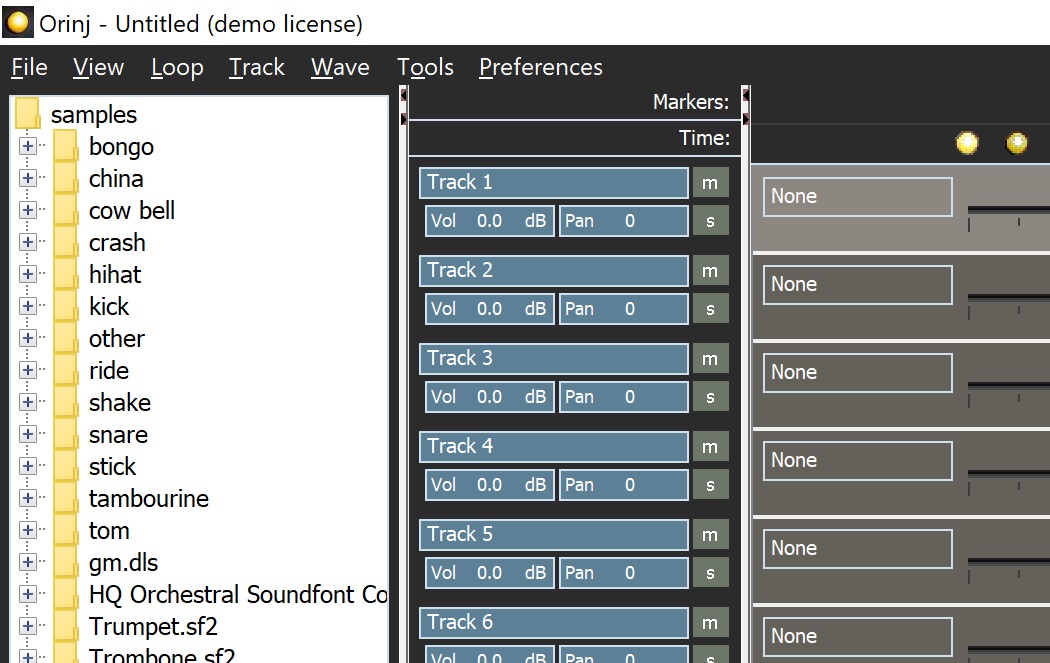
The loop view is shown on the picture below. If you are looking at another view, click on View and then on Loop View in the menu or click on the loop view button ( ) of the view toolbar.
Functionality
The following are examples of things you can do in the view.
- You can drag and drop wave samples onto tracks.
- You can open the existing loops provided with the Orinj installation. You can modify these loops.
- You can insert loops into your session.
- You can play loops.
- You can mute loop tracks, solo tracks, and change the volume and pan. You can reorder tracks.
Working with loops in the session
You can add loops to session as they are. Alternatively, you can also mix them into wave files and then include them in the session.
- If you add a loop to your session, you can edit it in this loop view. You can add, move, and remove hits and change volume and pan. Changes that you make to the loop in this view will appear in your session.
- If you mix a loop to a wave file and then add it to your session, editing this loop is more difficult. If you change the loop, you must mix it again and replace the previous loop in your session.
Loop menu
See Orinj Loop view menu. The menu is at the top of Orinj.
Marker line and time line
The following are the two panels under the menu.
- The marker line allows you to add markers at various points in your loop with comments about that loop.
- The time line shows the position of playback.
Wave sample tree
The tree in the left portion of Orinj shows the folders and samples in the "../samples/" folder of the Orinj installation. You can drag these samples and instruments to any of the loop tracks in the right portion of Orinj.
Tracks
The tracks take the largest portion of the view, under the time line. The actual tracks to the right display the loop hits. They show what wave sample is used for the track hits, and where hits are in the loop. In the picture below, the track uses the wave sample for a Yamaha 14x10 inch snare and the snare is hit on the 2 and 4 of a 4/4 loop (with ticks shown at every 1/8 note).

Each track comes with a track control panel. The panel is to the left of the track. It controls the track in the overall mix. Use this panel to change the title, volume, and pan of the track and to solo or mute the track.
Standard toolbars and panels
The following toolbars and panels exist in all views of Orinj.
- The player toolbar allows you to play, stop, record, rewind, and fast forward.
- The zoom toolbar allows you to zoom in and out of your session or file. (There is no zooming in the loop view).
- The current time panel shows the time of playback.
- The view toolbar allows you to switch between the views of Orinj.
- The pointer toolbar allows you to select mouse pointers. Some pointers help you move objects, while others are for selection and drawing. (This toolbar is not used in the loop view).
The CPU usage bar is at the bottom (the label "CPU: 0%"). During playback and recording, this bar shows you how strenuous playback and recording are on your computer.
Add new comment