Orinj version 9.0.0
An automation changes the value of a control over time, usually gradually.
The following is an example of volume automation over an acoustic guitar recording in the session.
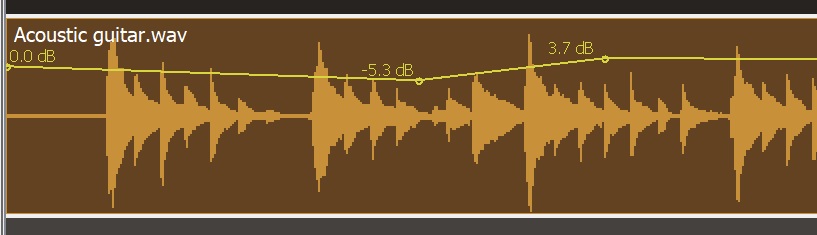
The amplitude of this track will increase gradually with time in those sections, where the line slopes up. The track volume will decrease in the sections in which the line slopes down. In this example, the volume of the track will decrease from 0 dB at the beginning to -5.3 dB in the middle and then increase to +3.7 dB.
Automations in Orinj
Orinj automates track volume, track pan, and many effect controls. See Orinj Effects and browse through each effect topic to see which automations are available for that effect.
Adding and removing automations
To add an automation, right-click on a control in Orinj. For example, to add a volume automation to a track in the session, right-click on the volume knob or the volume field in the track control panel to the left of the track. Then click on the Add Automation popup menu.
To remove an automation, right-click on the same control. For example, if you already automated the volume of a track, right-click on the volume knob or the volume field in the track control panel to the left of the track. Then click on the Remove Automation popup menu.
To add or remove an automation from an effect, show the effect dialog. Then right-click on the corresponding controls in that dialog.
When an automation is removed, it is deactivated. It is not used in the mix, but its points are not deleted. If you add the same automation again, its points will be as before it was removed.
Hiding and showing automations
In the session and in the wave view, you can hide and show the automations that were added.
To see all automations added to a track in the session, expand the track and look at the track control panel to the left of the track. To see all automations that were added to a wave in the wave view, look for these automations in the left bottom portion of Orinj in that view.
To show an automation, select it and click on the Show button. This same button will be renamed to Hide if the selected automation is already shown. Click on Hide to hide it.
When an automation is hidden but not removed, it remains active in the mix.
Automations in the mix order
Automations of effect controls are applied at the same time as effects. Volume and pan automations to tracks in the session are applied after all effects. See Orinj Mix order.
Automation computations and limits
Automation values are additive. For example, the automation of the left channel decay in the Orinj Delay adds or subtracts up to 100 percent from the left channel decay.
Automations are limited to the limits of each control. The left channel decay in the Orinj Delay, for example, can be between 0 percent (full decay and no signal) and 100 percent (no decay). Suppose that this decay is set to 50 percent. If the automation adds another 20 percent, the overall decay will be 70 percent. If the automation adds 60 percent, the overall decay will be computed as 110 percent and then limited to the maximum of 100 percent.
Changing automations
To make changes to an automation, first click on the draw pointer ( ) in the pointer toolbar. Then, to add a point, click on the track or wave. You can also drag existing points to move them.
Highlight the track over points and click on Track and then on Delete Automation Points in the Orinj menu to remove points in the session or click on Wave and then on Delete Automation Points in the wave view.
Right-click on a point to set the precise automation value at that point.
Automation placement
Automations in the session belong to tracks and auxiliary channels. If you move a session wave under the automation, the automation points will not move with the wave.
Errata
You can add automations to the master channel of the session in the current version of Orinj. Automations on the master channel have no effect.
You can also add automations to disabled controls. For example, you can add an automation to the width control of the Orinj Shelving Filter, even if the filter is a high boost filter and the width is not used. This automation will have no effect but will be used if the filter is changed to a band boost or a band cut filter.
Add new comment