Orinj version 9.0.0
The Orinj Limiter is a compressor with a high compression ratio and fast attack and release. It adjusts the amplitude of the incoming signal automatically and softens amplitude changes. Limiters prevent overload on analog systems and prevent clipping in digital signals.
An example of the Orinj Limiter
The following sound sample contains four bars of a drum track. The first half of the sample does not use a limiter. The second half uses a limiter with threshold -5 dB, compression of 10:1, attack of 1 ms, and release of 10 ms. The limiter looks ahead by 1 ms. A gain of 4 dB is applied to the track after the limiter. In the first half of the sample, without the limiter, the snare and kick clip and the snare ring is lost. In the second half of the sample, the snare does not clip, and the snare ring is audible.
Click to play this example with a limiter.

Using the Orinj Limiter
The Orinj Limiter can be added to tracks, auxiliary channels, and the master channel in the session view and to waves in the wave view.
- To add the effect to a track or an auxiliary channel in the session, first click on the track or auxiliary channel to select it. Click on Effect, Dynamics, and then on Orinj Limiter in the menu.
- To add the effect to the master channel in the session, click on Track and then on Master Channel in the menu. In the master channel dialog, click on the Add button.
- To add the effect to a wave in the wave view, click on Effect, Dynamics, and then on Orinj Limiter in the menu.
You will see the following dialog.
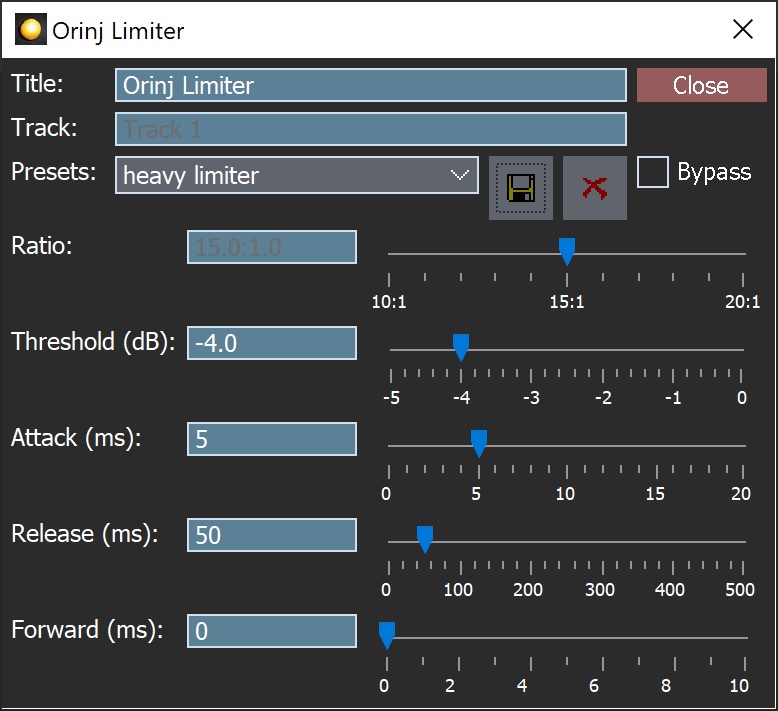
When the dialog becomes visible, the limiter has been added. Adjust the limiter parameters in the dialog and click on Close.
Orinj Limiter parameters
See Orinj Effects for notes on the Title, Track, Presets, and Bypass controls. The remaining Orinj Limiter controls are as follows.
- Ratio: Use this slider to set the compression ratio of the limiter. The ratio can be between 10:1 and 20:1.
- Threshold: Use these controls – the box and the slider – to set the threshold of the limiter. The threshold of the limiter is measured in decibels and is between -5 dB and 0 dB, where 0 dB is the maximum amplitude that the digital signal can carry, given the sampling resolution of the signal.
- Attack: Use these controls – the box and the slider – to set the attack of the limiter. The attack is measured in milliseconds (ms) and can be between 0 ms and 20 ms.
- Release: Use these controls – the box and the slider – to set the release of the limiter. The release is measured in milliseconds (ms) and can be between 0 ms and 500 ms.
- Forward: Use these controls – the box and the slider – to set the amount of time that the limiter looks ahead when adjusting the amplitude of the signal. With value of 5 ms, for example, the limiter will begin to adjust the amplitude of the signal 5 ms before that signal reaches a compression threshold. The amount of time that the limiter looks ahead is measured in milliseconds and can be between 0 ms and 10 ms.
See Orinj Effects for additional notes on: where Orinj effects can be used, using boxes and sliders that impact the same parameter (such as the box and slider for the limiter attack), applying effects to mono and stereo waves, and using effects during playback. See Orinj Working with effects for additional information on creating, modifying, moving, and removing effects. See Compressor (of dynamics) for additional information on compressors in audio processing.
Automations
The Orinj Limiter allows the following automations.
- Numerator: This automation adds or subtracts up to 20 from the numerator in the compression ratio.
- Threshold: This automation adds or subtracts up to 5 dB from the threshold.
- Attack: This automation adds or subtracts up to 20 milliseconds from the attack.
- Release: This automation adds or subtracts up to 500 milliseconds from the release.
Right-click on the corresponding controls to add or remove automations.
Add new comment